|
|
 Getting
Started Getting
Started
 StoreBuilderPlus
makes setting up your online store easy. Getting started is
a 3-step process that takes only five minutes. StoreBuilderPlus
makes setting up your online store easy. Getting started is
a 3-step process that takes only five minutes.
This document covers:
Setting up your website:
Setting up your webstore:
|
|
Setting Up Your Website
Getting started in 3 easy
steps
The 3-step getting started process looks like this:
|
|
1. Click the ‘Try
for Free’ button at the top of this website.
|
|
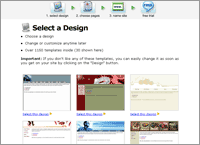 |
2. Choose a Design.
30 are shown but over
1500 are available once you’ve set up your website.
You can change designs at any time without losing any
of your work.
|
|
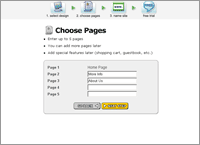 |
3. Name Your Pages.
You can name up to 5 pages for your site. More
pages can be added and changes can be made at any time.
|
|
 |
Note: When you're logged
in to your website, you'll always see a toolbar at the top
of the page. This toolbar is what makes editing your website
simple. All the main editing functions you'll use are just
one click away.
|
|
Adding a Page
|
 |
1. Click the
‘Add Page’ button on the toolbar.
This will start the Add Page wizard.
|
|
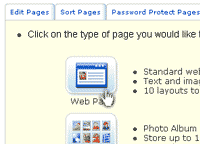 |
2. Choose a Page
Type from over 25 different layouts, including:
- Photo Albums
- Message boards
- Custom forms
- Catalogs
- And more..
|
|
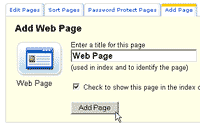 |
3. Name Your
New Page. Enter a name for your page, then
and click ‘Add Page’. You will be automatically
taken to the page editor.
|
|
| Editing
a Page
|
|
1. Click the ‘Edit
Page’ button on the toolbar.
If you just added a page, skip this
step as you will automatically be taken to edit mode.
|
|
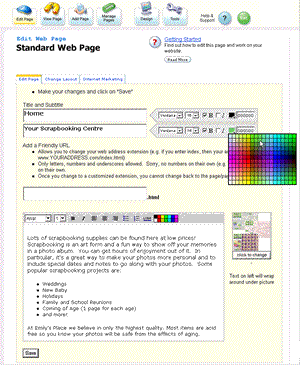 |
2. Edit Your Page.
Editing a page is easy. Select fonts, styles and colors
from on-screen menus. |
|
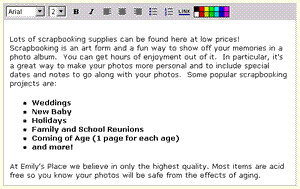 |
The text editor works
a lot like Microsoft Word or any other word processor.
You don't have to download or install anything for it
to work. Just add and format your text. |
|
 |
3. Click ‘Save’
when you’ve finished editing your page. You’ll
then see what your page looks like after the changes. |
|
| Setting
Up Your Webstore
How to
Add a Catalog to your Website
A catalog lets you show your
visitors what you have to offer. It can display images, product
details, pricing, and customization options.
|

|
1. Click ‘Add
Page’ on the toolbar.
|
|
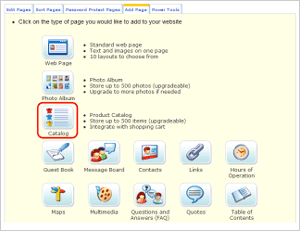 |
2. Click the ‘Catalog’
page type. |
|
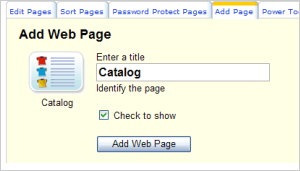 |
3. Name the catalog
and click ‘Add Web Page’. |
|
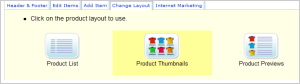 |
4. Choose a layout.
There are 3 to choose from: product listings, product
thumbnails, and product previews. Your products and
the amount of detail you need to list will help you
decide the best layout for your catalog. |
|
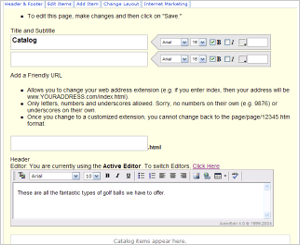 |
5. Edit your catalog.
You can add a header or footer to your catalog page
or change the page title. You can also add products
at this point.
When you’re finished editing,
click ‘Save’ at the bottom of the page. |
|
| How
to Find Wholesale Products & Add Them to Your Catalog
Our partnership with Doba drop
shipping gives you access to over 250,000 products at the
lowest wholesale prices to choose from and sell on your website.
|
|
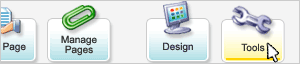
1. Click ‘Tools’
on the toolbar.
|
|
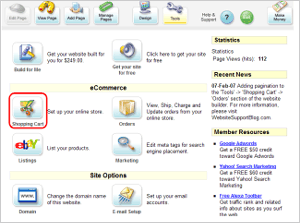 |
2. Click ‘Shopping
Cart’. |
|
 |
3. Click the ‘Power
Tools’ tab. |
|
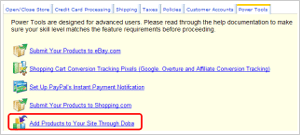 |
4. Click ‘Add
Products to Your Site Through Doba‘. |
|
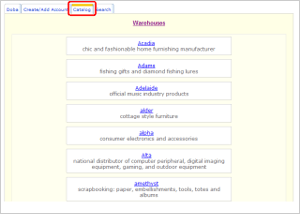 |
5. Click the ‘Catalog’
tab.
6. Choose Warehouses
and browse their products. There are over 70 wholesalers
to choose from carrying a variety of products. You can
also click the ‘Search’ tab to search for
specific products instead of browsing through wholesalers. |
|
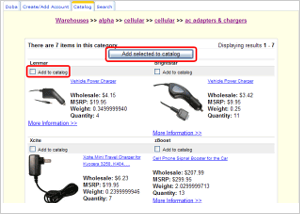 |
7. Choose products,
check the ‘Add to catalog’ box, and click
‘Add selected to catalog’.
|
|
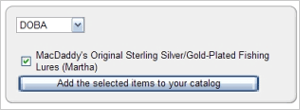 |
8. Choose a catalog
from the drop-down menu that you’d like to add
these products to. This applies if you have more than
one catalog page.
9. Click ‘Add the selected
items to your catalog’. You can now either
go to your catalog and view your listed products, or
you can continue adding more Doba products.
|
|
|
How to
Set Up Your Shopping Cart
To sell your products, your shopping
cart must be turned on. When your cart is turned on, your
visitors can choose items from your catalog to purchase.
|
|
1. Click ‘Tools’
on the toolbar.
|
|
|
2. Click ‘Shopping
Cart’. |
|
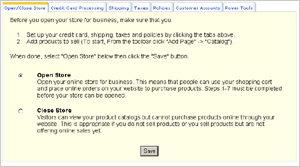 |
3. Click ‘Open
Store’ and click ‘Save’. |
|
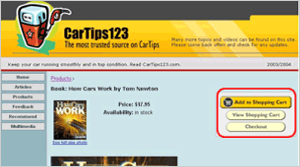 |
NOTE:
When the shopping cart is turned on each catalog item’s
page will display buttons that let your visitors add
them to the shopping cart, view what they’ve chosen,
or checkout and pay for their items. |
|

|
|
Copyright © 2007 StoreBuilderPlus. All Rights Reserved.
|